
As you probably know, Project Online will officially retire on September 30, 2026. That means you will no longer be able to access it, and your data will go away at that time.
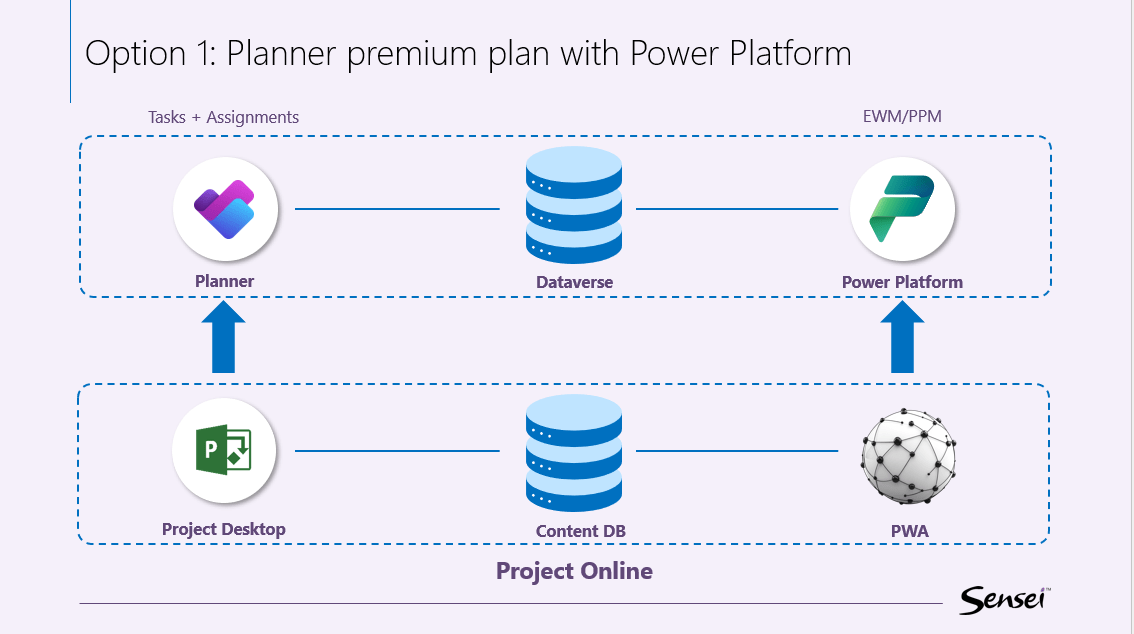
Project Online is made up of three components: the Project Desktop, the SharePoint Content Database, and Project Web App (or PWA for short).
Project Desktop is primarily used to manage the schedule or the detailed tasks and assignments. That’s the work breakdown structure, start and finish dates, dependencies, deadlines, baseline, etc.
Project Web App is where the Enterprise Work Management or Project and Portfolio Management activities happen. That covers the governance workflows, risks, issues, changes, decisions, programs, portfolios, intake with scoring and prioritization, resource management, timesheets and much more.
And all of the data is stored in the SharePoint Content Database.
Let’s break down the options for moving on from Project Online. The first option, and the one that Microsoft prefers, is that you transition to using Planner premium plans with the Power Platform.
The second option is to do a migration from Project Online to Project Server Subscription Edition, where you essentially get the same functionality as you have today, but your organization is now responsible for hosting the infrastructure as well.
First of all, let’s not think of Planner on its own as a replacement for Project Online. Planner is a Work Management tool, and a very capable one at that. In combination with the Power Platform, it can replace Project Online for the majority of organizations.
The new(ish) Planner brings together Microsoft To-do, the old Planner, and Project for the Web in a modern interface that provides team access to plans, boards and charts, and advanced task features. It really shines when used in combination with Teams and the Power Platform for true enterprise work management and AI. And with only a Microsoft 365 license, users can access their tasks and teams can collaborate around planned activities.
Related: ‘Unboxing’ the New Microsoft Planner for Enterprise Work Management
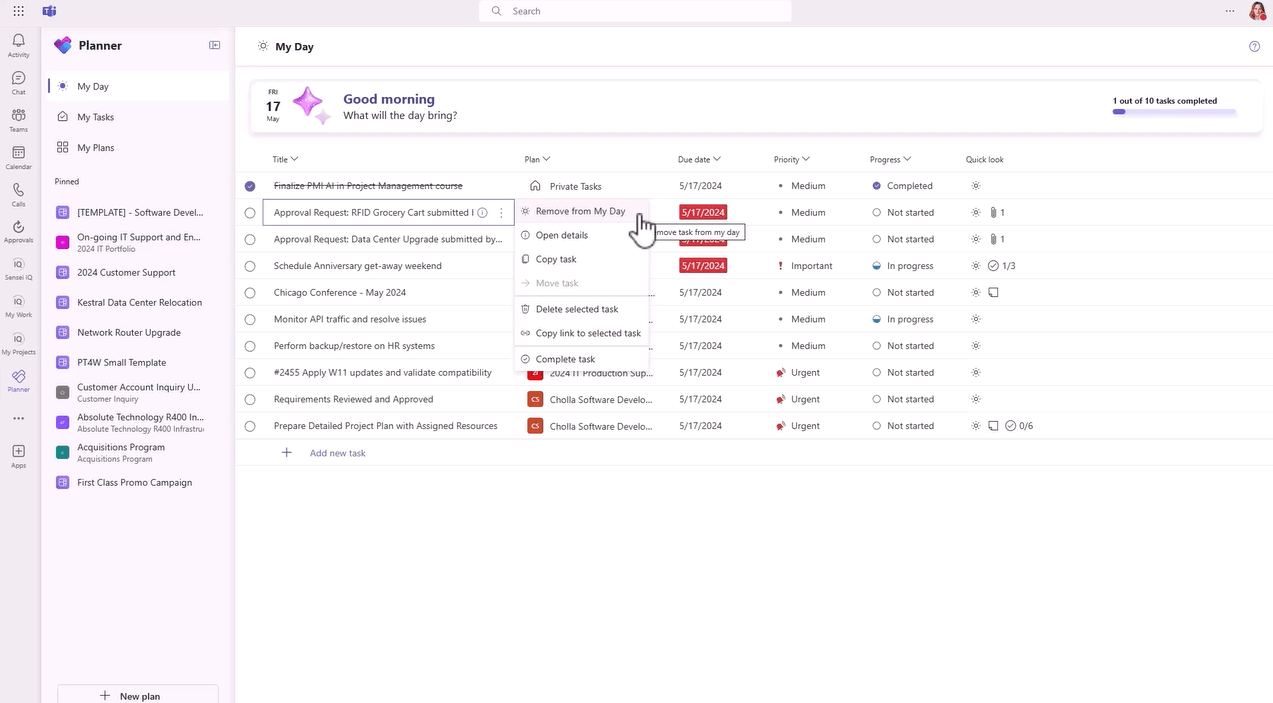
The first thing you see in Planner is the “My Day” view. It shows you what you should be focused on right now across private tasks, flagged emails, basic and premium plans. You can add and remove tasks manually from here, or they will show up in this view automatically if their due date is today.
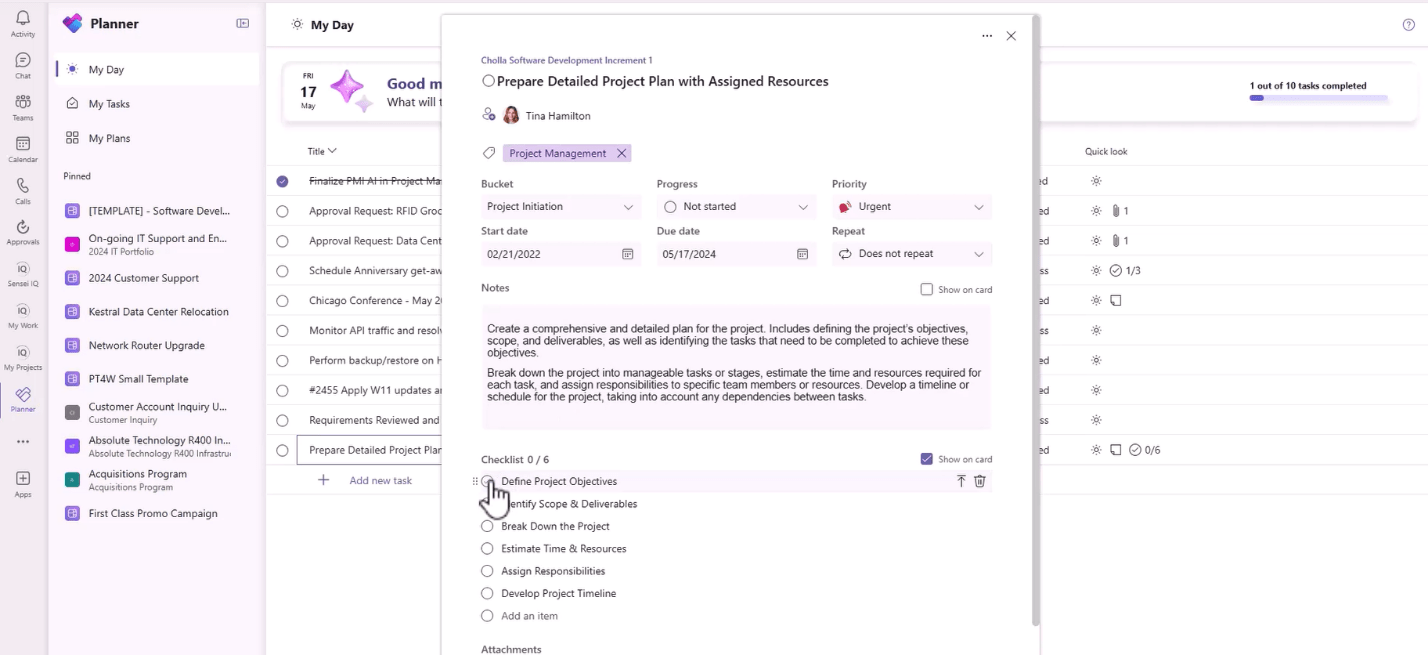
You can status your tasks directly in the grid, or you can open a task to see more details and status the work here. And, of course, you can create a new private task here too.
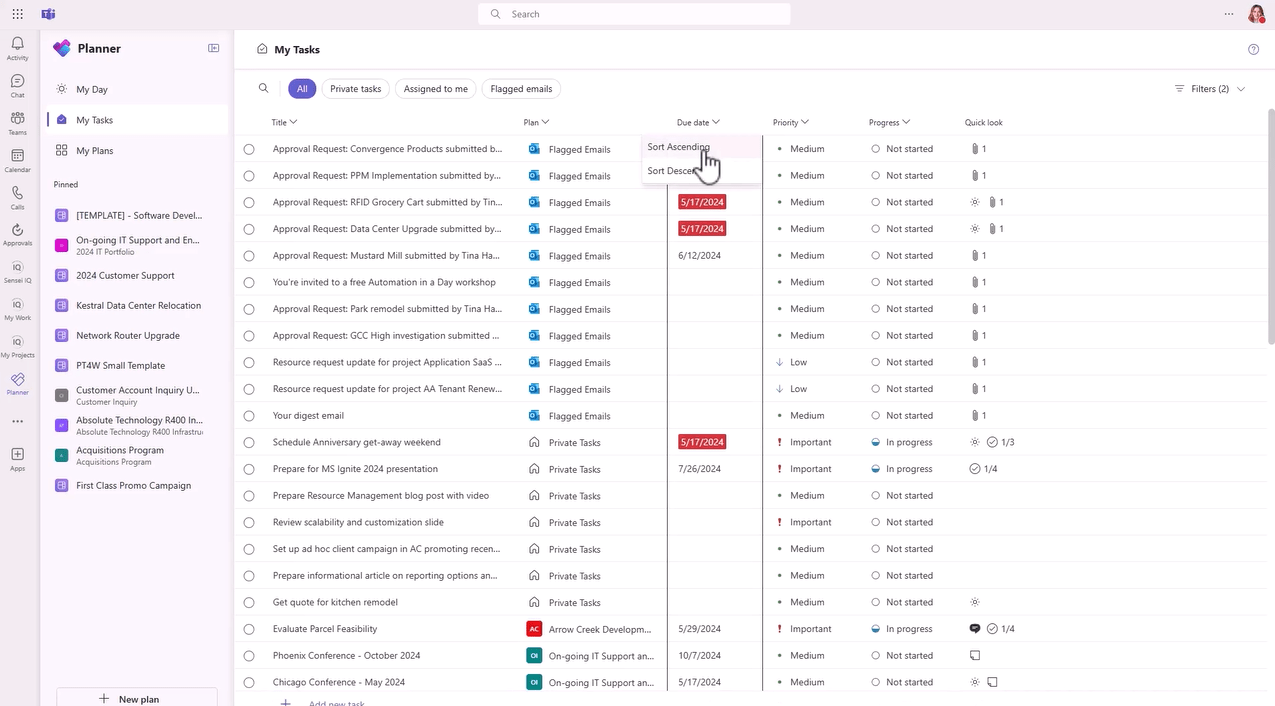
The ‘My Tasks’ view shows all work regardless of when it’s due. I tend to sort by ‘Due Date’ so I can see if anything is falling behind.
At the task level, Planner premium plans offer a more detailed and rich experience with duration, % complete, sprint functionality, effort, custom fields, advanced dependencies with lead and lag time, as well as task conversations in Teams and the ability to connect a task to project goals.
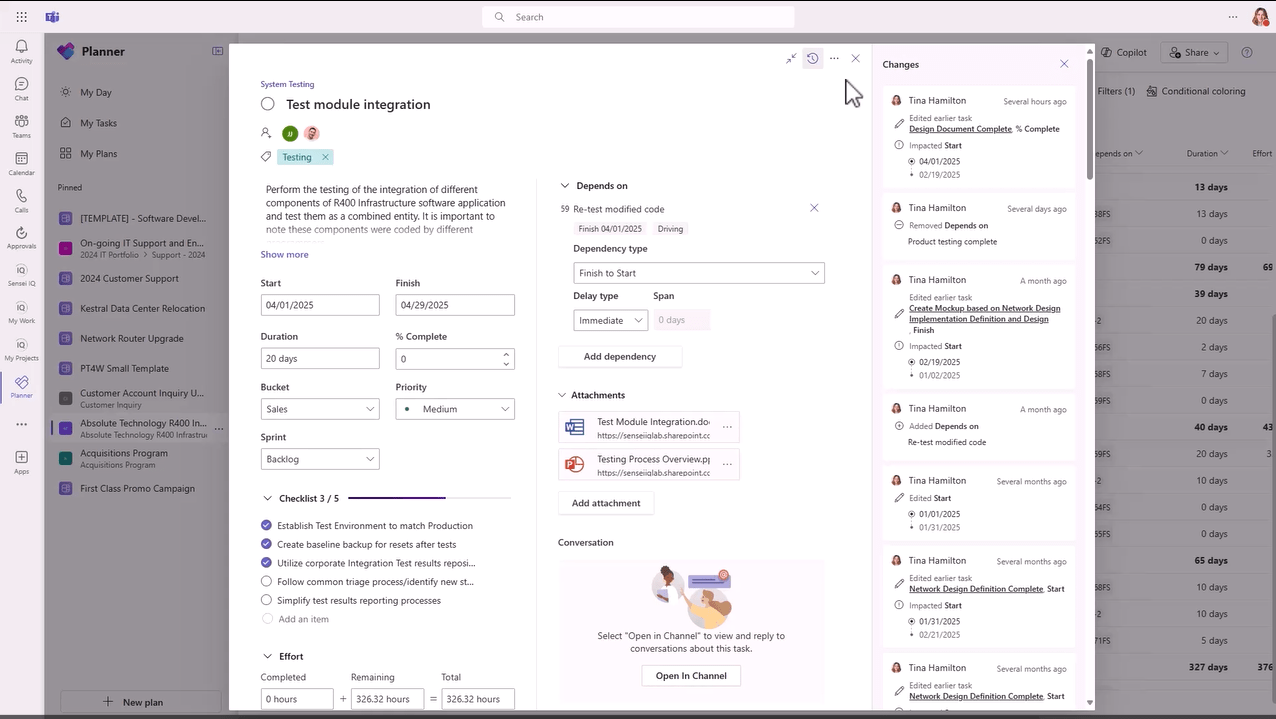
You even get a complete task history so you can track detailed changes on the task. This is a feature that goes beyond traditional baseline functionality, which only recorded a static version of 14 fields.
Task Change History actually captures what changed on any field and also shows who changed it and when.
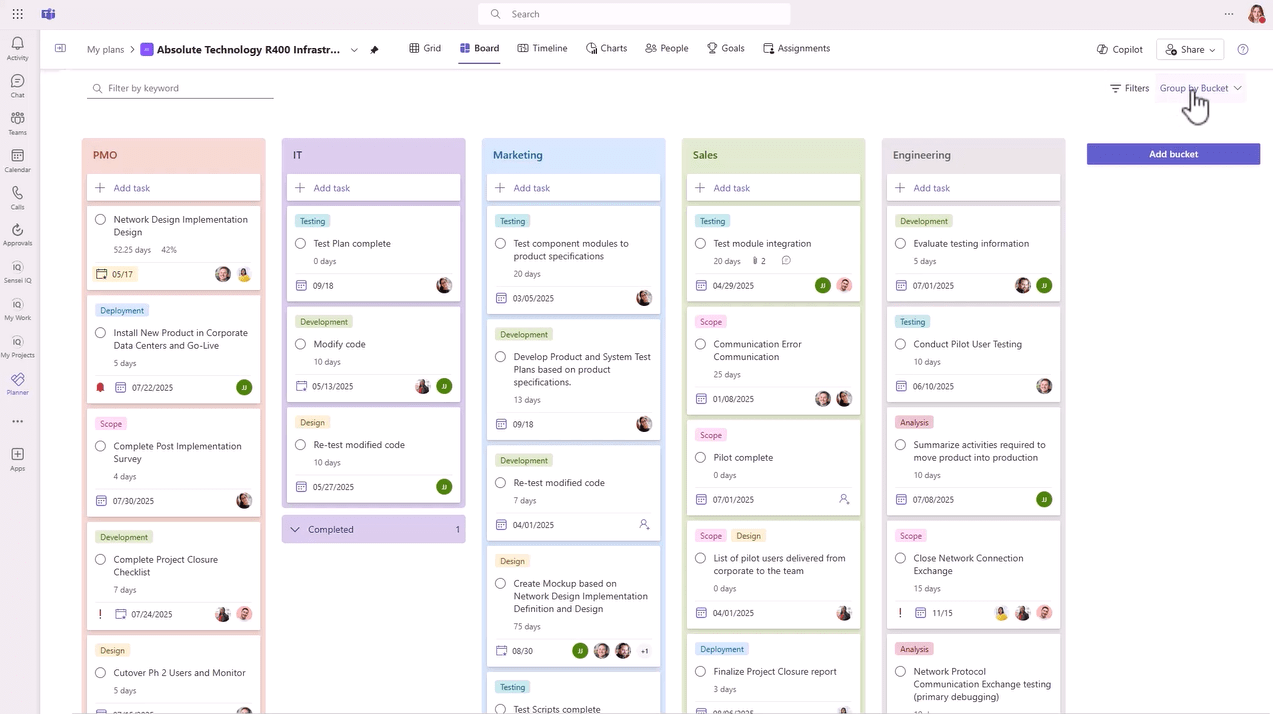
The upgraded Board view helps you organize the work into customizable buckets. You can group the work by functional area in this plan, as well as by Assigned to, progress, finish date, labels, priority, and sprints. Additionally, you can drag and drop tasks between columns in these views.
Another big reason for Planner and the Power Platform is that both get to leverage Copilot for Artificial Intelligence. Inside of Planner there are actually three agents.
The Project Manager agent will help you build a plan based on your stated goals and any supporting documentation you may have uploaded. AND, you can even assign the agent to complete the work, which is really cool! This works best with what Microsoft calls ‘Common Information Work’ tasks like research.
Another option is the more traditional Copilot chat agent in Planner. Copilot produces the best results from detailed and specific prompts. You can create tasks and goals, and it also goes beyond just the data in the plan. For example, you can ask about status meetings, and it will read the project calendar to provide answers.
The third agent is the ‘Status Report with AI Project Manager’. You must have at least 10 tasks in a shared plan with some progress in order to get the best results. For this, you select a report period and then enter a specific goal for your report. The Agent now analyzes the plan and produces a status report for the selected time frame. You can then edit the report and share it as a newsletter or send it out via e-mail.
There are also multiple Copilot agents in Power Apps that work with your project data.
Related: AI for Project and Portfolio Management (PPM) with Microsoft Copilot in M365
In summary, Planner is a modern, team-centric work management offering. It is the go-forward platform for Microsoft’s work management vision, and with the addition of Sensei IQ™, it can be a central part of your enterprise project and portfolio management solution.
While there is no direct migration from Project Online to Planner, there are several ways to get your data moved. Your Microsoft Project schedules can be manually imported from MPP files, or you can use tools like EZImport to do automated, bulk imports.
Related: Import an MPP file into Microsoft Planner premium plans
To bring over your SharePoint lists and libraries from PWA, there are some migration tools out there like FluentBooks and ShareGate, but we highly recommend taking the time to streamline and simplify your processes, and be aware of the capabilities of the new platform. Don’t just migrate the old way of doing things, but use this as an opportunity to re-listen to your users and make things easier for them.
The same goes for your governance workflows and your overall configuration in Project Online, like custom fields and Project Detail Pages. This is an excellent time to make the practice of project management better at your organization.
You might want your users to keep the same functionality and user experience when you no longer have access to Project Online, and Project Server Subscription Edition provides that. You also might not have enough time to investigate new tools such as Planner at this time to see if they fit all your needs. Project Server Subscription Edition gives you the same features and functionality as Project Online, except it is hosted by your organization, whether that be on-premises or in the cloud within a virtual machine infrastructure in Microsoft Azure.
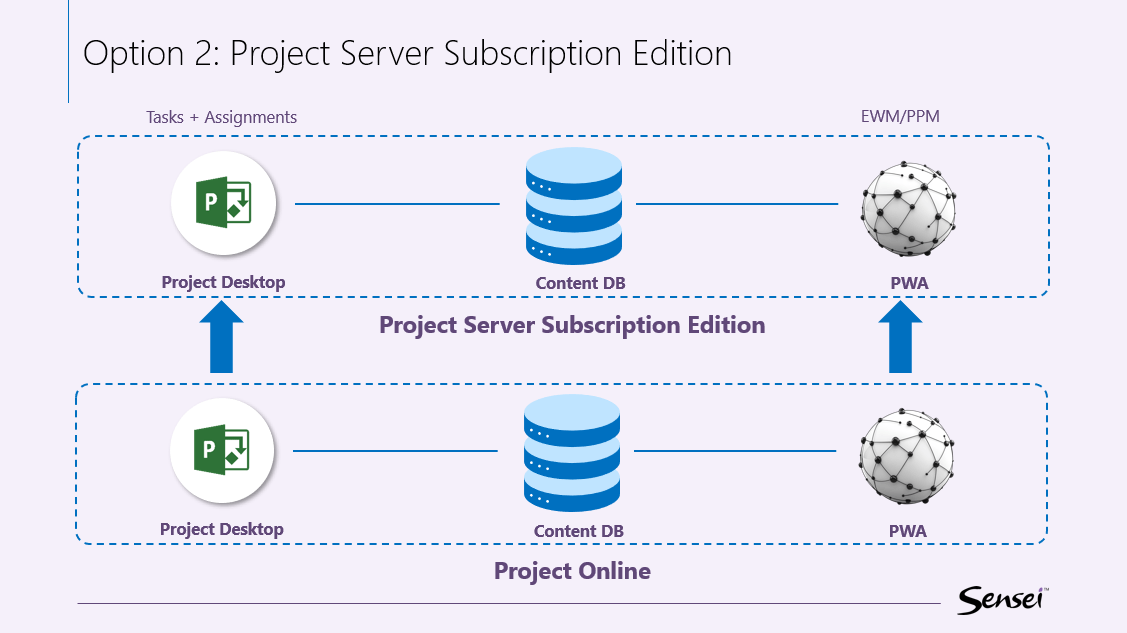
Users can keep using the Microsoft Project Desktop client with its advanced scheduling functionality and features your user base has years of experience with. The one thing that will be different is that Project Server Subscription Edition does not support OData web connections for reporting. Instead, you’ll be able to connect directly to the tables and views using SQL connections that are much faster and provide more query functionality. You can host these reports in Power BI in the cloud or Power BI Report Server if you want to keep everything stored on premises. You can leverage analytical or paginated reports using the SQL connector, and even use DirectQuery, which provides real-time reporting, so you would no longer need to wait for data refreshes to your model.
Migration to Project Server Subscription Edition is supported by using FluentPro’s migration software. Using this approach is recommended if you have a large number of projects and resources. FluentPro can also migrate resource engagements, Project Sites, and timesheets if needed. If you have a smaller subset of projects and you don’t need to migrate
advanced features, you could simply save the projects as individual .mpp files from Project Online and import them into Project Server.
In terms of the migration process, you first need to determine where your users will come from. If you are utilizing virtual machines in Azure, you will need to set up Microsoft Entra Domain Services in your existing tenant. This is required because SharePoint and Project Server require NTLM or Kerberos authentication, which Microsoft Entra ID does not support. If you are installing on premises, your users will just be coming from your local Active Directory, and no additional components need to be installed to support those users. In either case you will also need to:
The move from a Software-as-a-Service platform that Project Online provided to Project Server Subscription Edition means your IT department will now need to manage these servers. Depending on the size of your environment, you might have multiple web front end servers, applications servers, and a dedicated database server to manage. This will require patching the servers with the latest software updates, managing database disaster recovery plans, managing disk space, and maintaining optimal system performance.
There is, of course, also a hybrid approach where the foundation is your Microsoft 365 tenant, Power Platform, Microsoft Teams and Copilot. In the hybrid approach, you will be able to utilize multiple work management options, you can connect to your existing Project Online environment and Project Server Subscription Edition while transitioning as well as Planner basic and premium plans for those users who see that as a better fit for their needs.
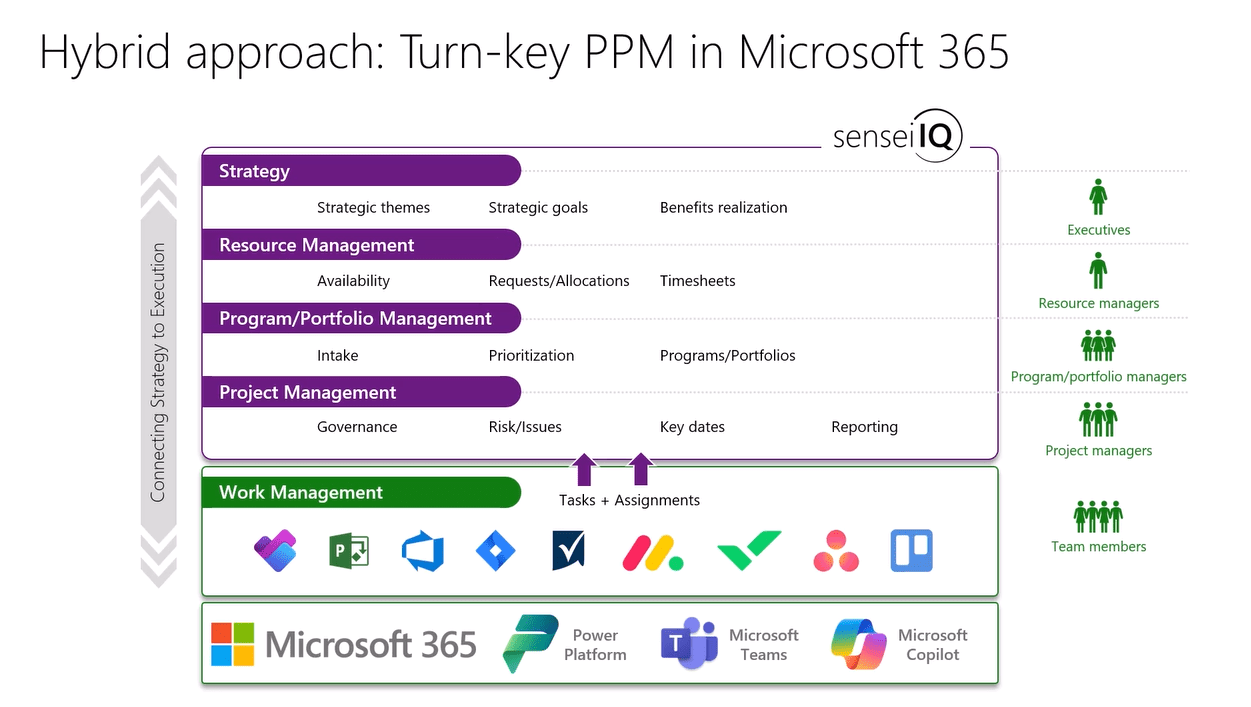
In fact, the premise is that your teams can utilize just about any work management option they choose to manage the detailed work or the tasks and assignments on their projects. Regardless of where the tasks are managed, you get a standardized and consistent approach to Project Management, Program/Portfolio Management, Resource Management, and Strategy.
This way, you have a standard intake process, true enterprise resource management, and all projects get consistent governance workflows and collaboration. This approach buys you more time. In the short term, you still have access to Project Online, and after September 30, 2026 your users can continue using the Project Desktop connected to Project Server while you evaluate Planner and other options.
We’ve compiled the top 10 questions that we get along with their answers below.
Q: If I have Task-level custom fields in Project Online, which option should I choose?
A: If you’re otherwise leaning towards Option 1, you can extend Planner to include custom fields, so that’s not a showstopper.
Q: What about Baselines?
A: Planner does have some baseline functionality, although not as advanced as Project Online. However, you do have the option of taking snapshots of your data in Power Apps; so that allows you to track progress over time and report against your initial baseline.
Q: If I use the feature to move incomplete work forward of the status date, what’s my best option then?
A: You can get very close to the same result in Planner by either increasing the duration or changing the finish date of tasks.
Q: What about Due dates and Deadlines; those fields don’t exist in Planner.
A: That’s right, but you can add those as task-level custom. Microsoft refers to them as Enterprise Custom Columns.
Q: What about Schedule templates?
A: Today, our clients use the ‘Copy plan’ functionality, which works just fine, but Microsoft has true custom templates for Planner in development right now, and rollout is supposed to start any day now.
Q: What about the Earned Value feature in Project Online.
A: If this is a critical feature, then you need to go with Option 2, Project Subscription Edition.
Q: What about Resource Leveling?
A: That’s also only available in Project Server.
Q: I track costs at the task level today in Project. Which option do I go with?
A: Project Server is where you have time-phased data, so if you want that exact functionality, that’s your go-to. However, with most organizations using multiple work management tools, we recommend that you separate the budget, planned spending, and actuals from the schedule, like we do in the Sensei IQ™ finance module.
Q: I use the Project Online Timesheet in dual entry mode so that it also statuses the schedule. What is my best option?
A: You do have the option of doing timesheets on the Power Platform and in Sensei IQ™, but to status the schedule you’ll need to go with Project Server again.
Q: If I use generic resources for planning, what do I choose?
A: We recommend that you do top-down resource planning outside the schedule, and that can be done in both options through Sensei IQ™’s resource management module. But if it has to be on the detailed tasks in the project schedule, then Project Server is your only option.
Contact us: info@senseiprojectsolutions.com .