
Artificial Intelligence (AI) seems to be the hottest topic these days! This technology seems poised to fundamentally change the way we interact with information, and many companies are making prodigious financial investments to ride this disruptive wave. Those of us who work in the world of Project and Portfolio Management (PPM) might ask, how might AI benefit our practice?
For Microsoft 365 clients, Copilot is the best AI option because it seamlessly integrates with the entire Microsoft ecosystem. One of the key benefits of using Copilot is that all data stays within the secure Microsoft 365 tenant, adhering to existing security rules and ensuring data confidentiality. Among other things, this means that your data isn’t used to train Copilot’s language model. Additionally, by using Copilot, clients avoid the need to vet another vendor for their own AI product, saving time and resources while maintaining a high level of trust and security.
For Project and Portfolio Management in Microsoft 365, there are now several options and usage scenarios for AI with Copilot:

Project Manager Agent in Microsoft Planner
To get started with the Project Manager Agent, you’ll need to create a ‘Plan with Project Manager’ and it needs to be added to a Microsoft 365 Group. You can add files to ensure better results and define the goal of your project. The agent will then create an appropriate set of tasks for you. Depending on the nature of the work, you may also be able to assign the agent to complete that work. This is ideal for what Microsoft calls ‘Common Information Work’ tasks like research. But they are expanding the set of available agents on the backend, so this will only improve and become more specialized over time. It’s quite good already, especially if you upload some content for background on the work and give specific instructions on the expected output.

Project Manager Agent – Define Goal and Generate Tasks

Project Manager Agent – Execute Tasks
Once the agent finishes a task, it’s presented for review, and now the team members can comment on and update the output produced by the agent. You can then click ‘regenerate’ and the agent will complete the task again, but this time include the input provided by the team.
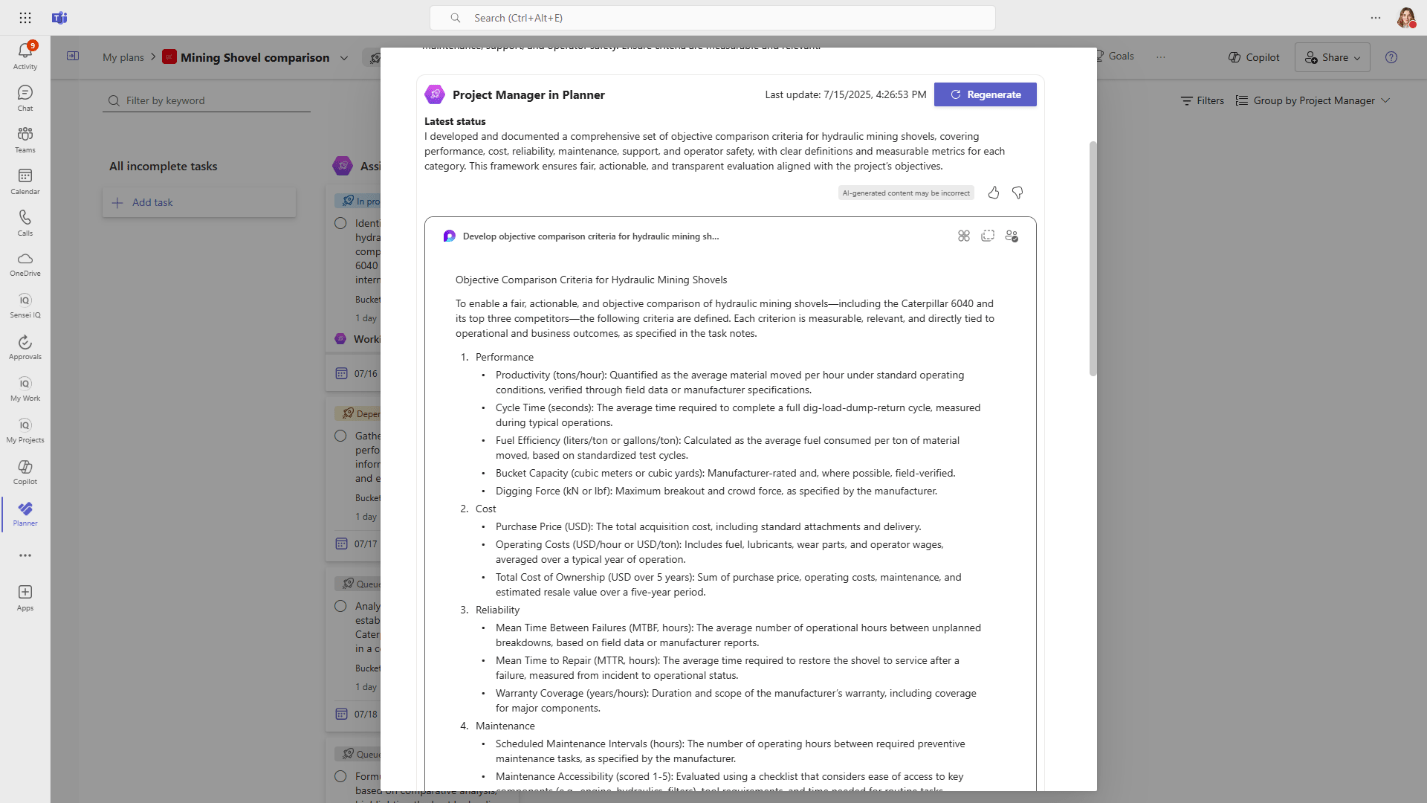
Project Manager Agent – Collaborate & Refine
Another option is the more traditional Copilot in Planner. Here you can also create tasks and goals. Copilot produces the best results from detailed and specific prompts. It also goes beyond just the data in the plan. For example, you can ask about status meetings, and it will read the project calendar to provide answers.
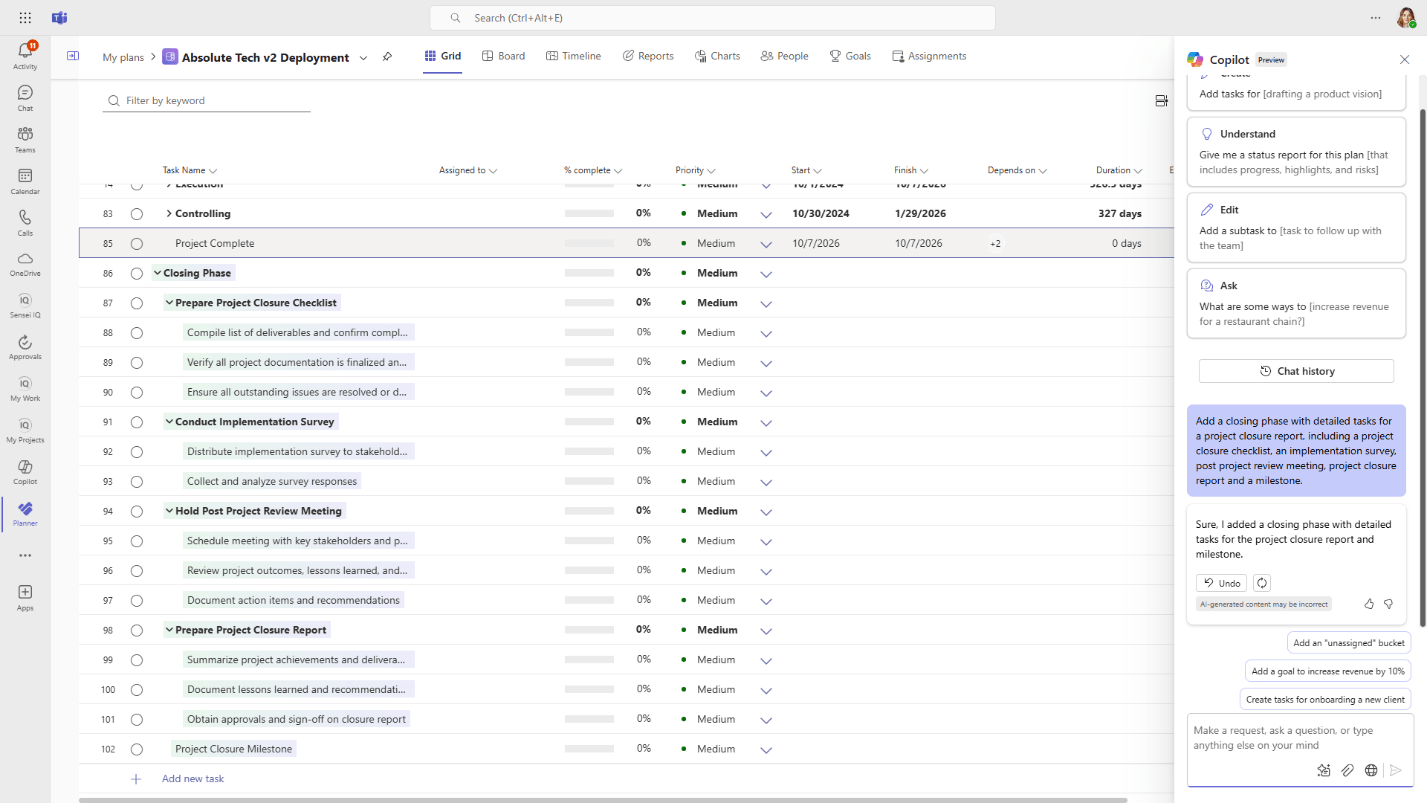
Copilot for Planner
The Status Report with AI Project Manager is another recent addition. You must have at least 10 tasks in a shared plan with some progress in order to get the best results.
Start by selecting a report period and then optionally enter a specific goal for your report. The Project Manager Agent now analyzes the plan and produces a status report for the selected time frame.
You can edit the report, share it as a newsletter, or send it out via e-mail.

Status Report with AI Project Manager
The three options we’ve just seen all live and operate inside of Microsoft Planner, so the focus is on the plan data.
The last option is Copilot for Power Apps, so it has quite a broad scope and goes beyond the plan data to cover all project management, program/portfolio management, resource management and strategy data.
There are four built-in agents: Data entry agent; Data exploration agent; Summary agent; and Chat agent.
With the Chat Agent, you can navigate within your PPM app, such as navigating from the resource availability heatmap to the list of active projects.
You can use prompts to explore the data,then navigate again from the results or show them listed in a filtered view.

Copilot for Power Apps – Chat agent
You will get better results if you index your data. Doing so not only improves search performance, but it also helps Copilot understand and interpret natural language queries, which means more accurate and relevant results. In our environment here, we’ve indexed over 200 columns across portfolios, programs, projects, resources, tasks, deliverables, issues, risks, key dates, and much more.
When asking a question, you can use the record picker, which is a forward slash, to select the object of your question. For example, I might want to know how many change requests there are on a particular project.
If the Bing search option at the bottom is disabled, then Copilot will only use data inside the app. However, if you enable Bing search, it will also include relevant information from outside the app; for example, recent news about a client you’re doing work for.
The Data exploration agent is great for finding data in views and creating visuals. The agent shows any filters already applied to the view at the top. Then, you can ask to show just projects that finish this quarter, for example.

Copilot for Power Apps – Data exploration agent
Or you could visualize the data in a number of different charts. Once the chart is generated, you can use it to filter the data in the view. The visualization is interactive, so you can change the chart type or choose which data to show. Then, copy and insert into a presentation.

Copilot for Power Apps – Data exploration agent
The Data entry agent helps you fill in data throughout your app. For example if you receive a status e-mail and want to copy and paste that text into the project status form, Copilot will parse the text and suggest what text to put where. You can then review entries and accept them individually or all at once. This also works with uploading a document, perhaps if you have background on a client.

Copilot for Power Apps – Data entry agent
The Summary agent can be configured to summarize specific information on a form. This is then displayed at the top for a quick overview of the data below.
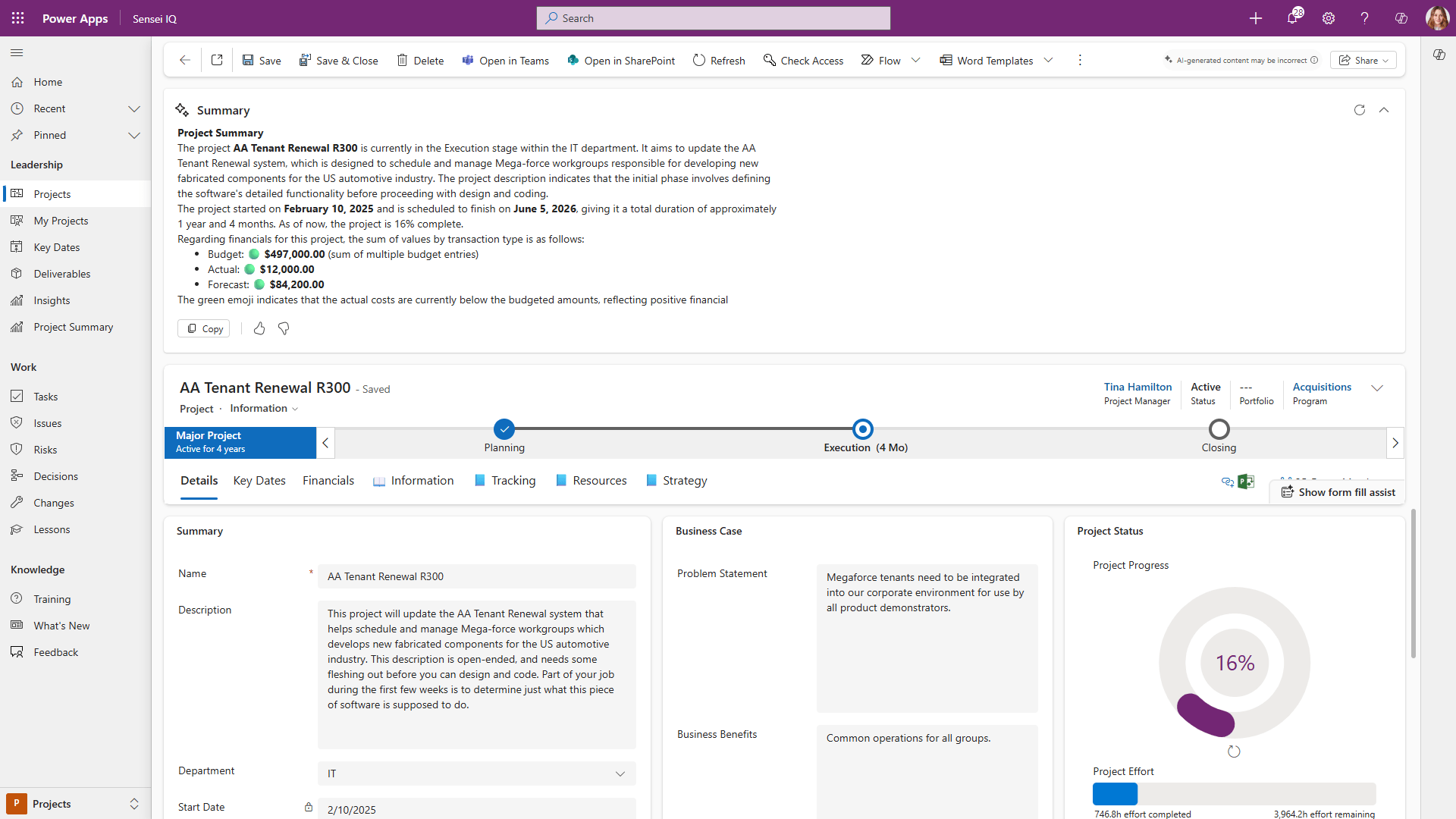
Copilot for Power Apps – Summary agent
It’s also possible to deploy this in views. So when you’re looking across a list of projects, it’s easy to get a summary of each.

Copilot for Power Apps – Summary agent
Like Copilot, Sensei’s PPM solution, Sensei IQ™, lives entirely inside your Microsoft 365 tenant and runs on the Microsoft Power Platform. This enables the use of Microsoft Copilot in both Sensei IQ™ and Planner. Sensei understands the importance of the privacy and security of your PPM data, so all Sensei IQ™ data stays in your M365 tenant and your users are authenticated there too.

AI has tremendous potential to improve the practice of PPM. At the time of this writing Copilot for Power Apps is in preview, but Microsoft has identified Copilot as one of their key pillars and is investing accordingly, so the outcomes will certainly improve greatly over time. The structured nature of PPM data such as issues, risks, status updates, schedules, etc. makes Copilot a great fit for gaining insight. Your data is secure inside your Microsoft 365 tenant. We at Sensei are excited about the future of AI!