
The Power BI Report Pack for Microsoft Planner premium plans gives you turn-key reporting for your plans, resources and portfolios. There are 10 report pages, and you get the source file so you can edit it as you see fit. In this video and blog, we cover each of these report pages and what they offer.

On the first page of the report pack, you get an overview of all your plans, including a count of plans and how much effort they represent. You can filter by Progress or Project Manager, and the table below provides key information about each plan. You can also click the link icon to open a specific plan. Additionally, each page has filters on the right so you can easily find what you’re looking for.
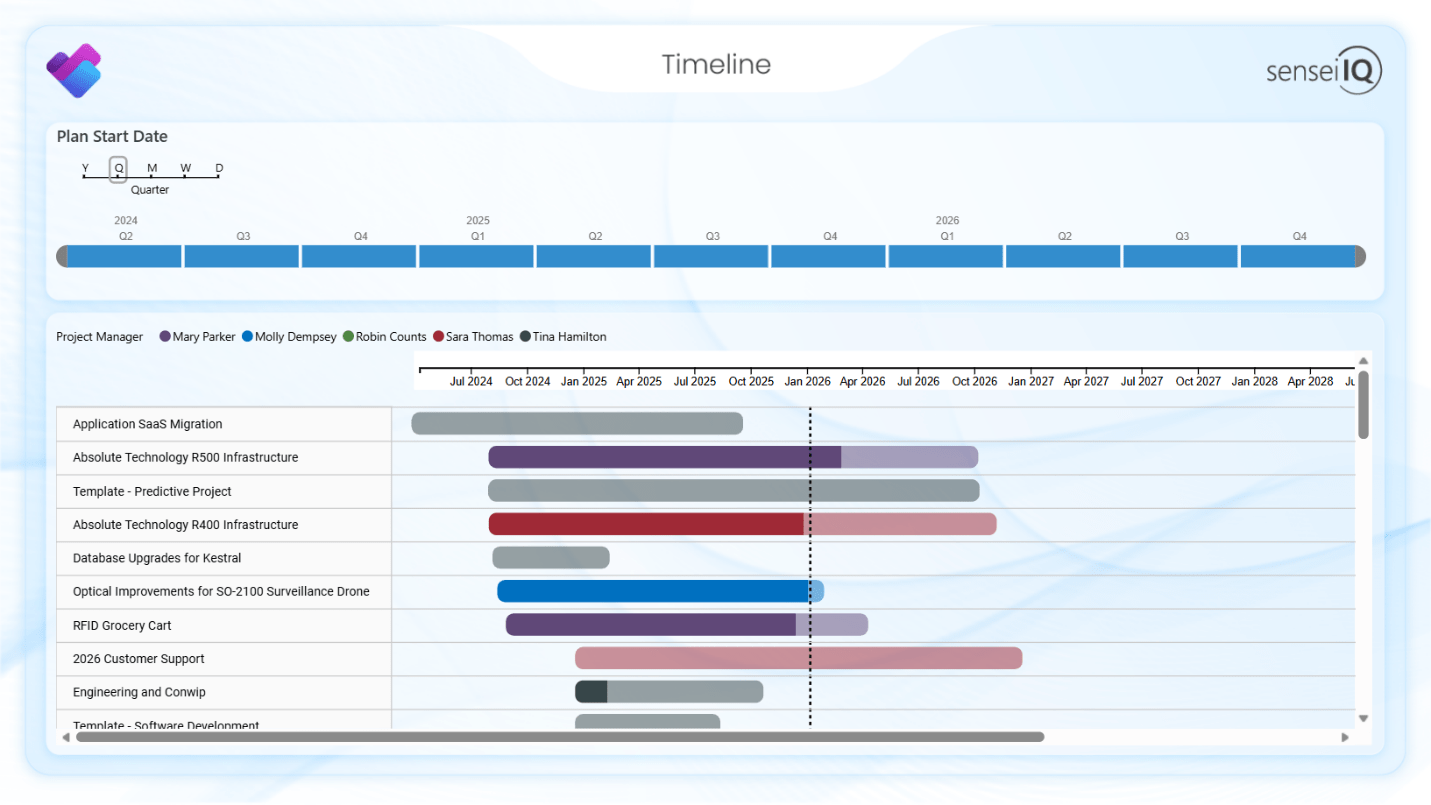
The Timeline provides a more visual overview; here you can filter for a specific time frame based on the plan start date. You can also mouse over a timeline to see a high-level summary of the plan.
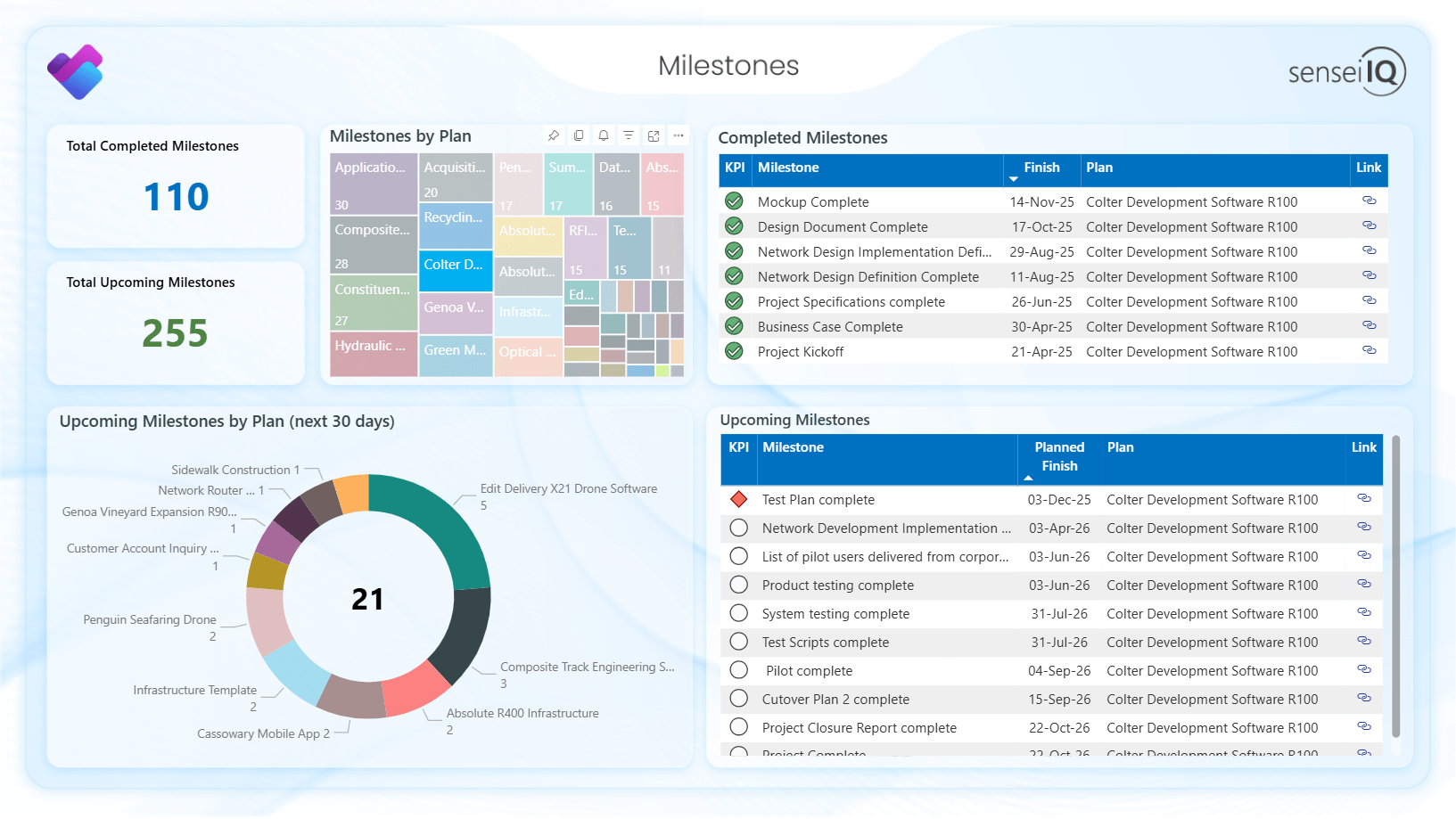
The Milestones report page pulls out the milestones from all the plans. It lets you easily see what you have completed recently and which milestones are coming up. A red KPI means the milestone is overdue, and white means it’s scheduled in the future.
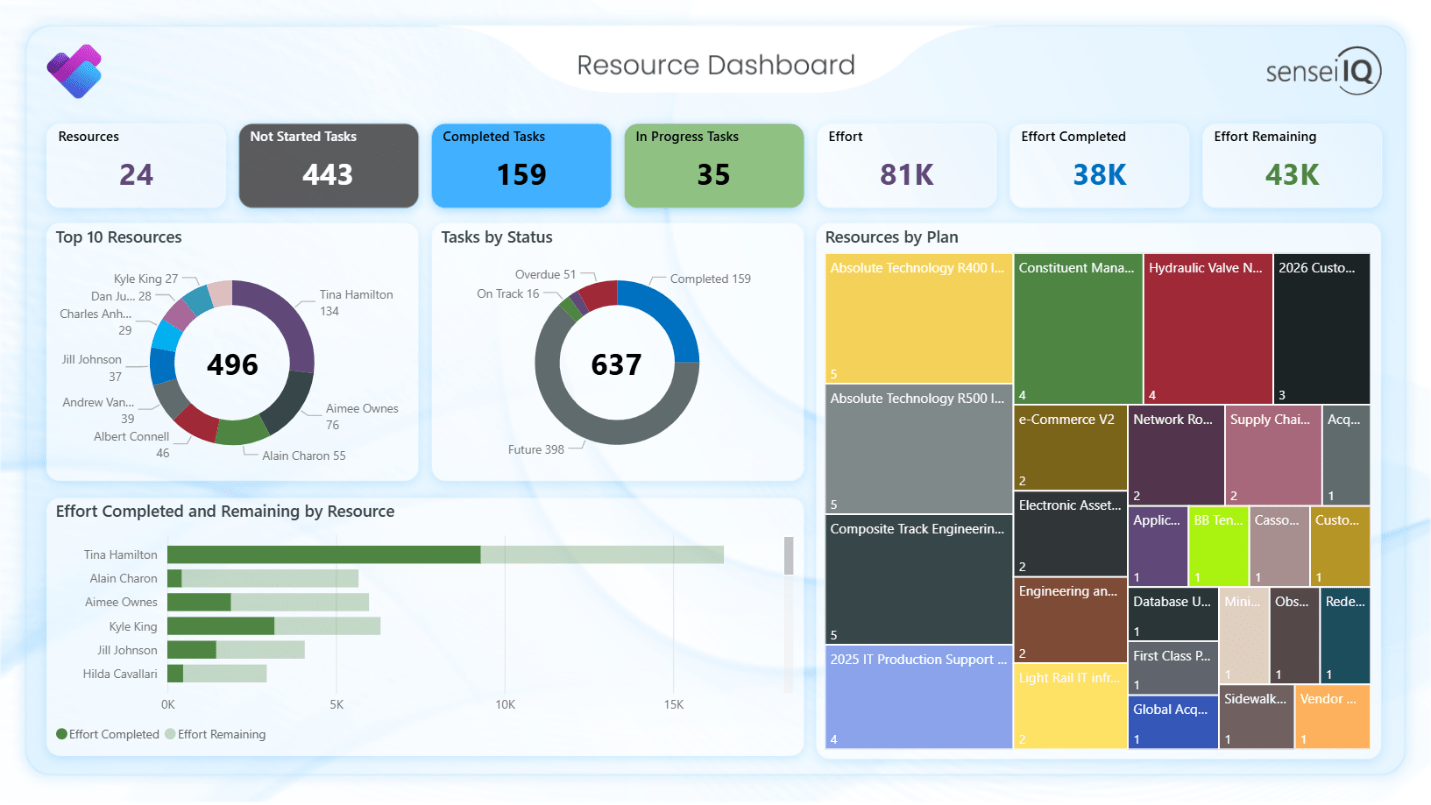
The Resource Dashboard shows a high-level overview of resources and their tasks and assigned effort. You can filter to see details by plan, or filter for overdue tasks and see the plans and resources behind these.
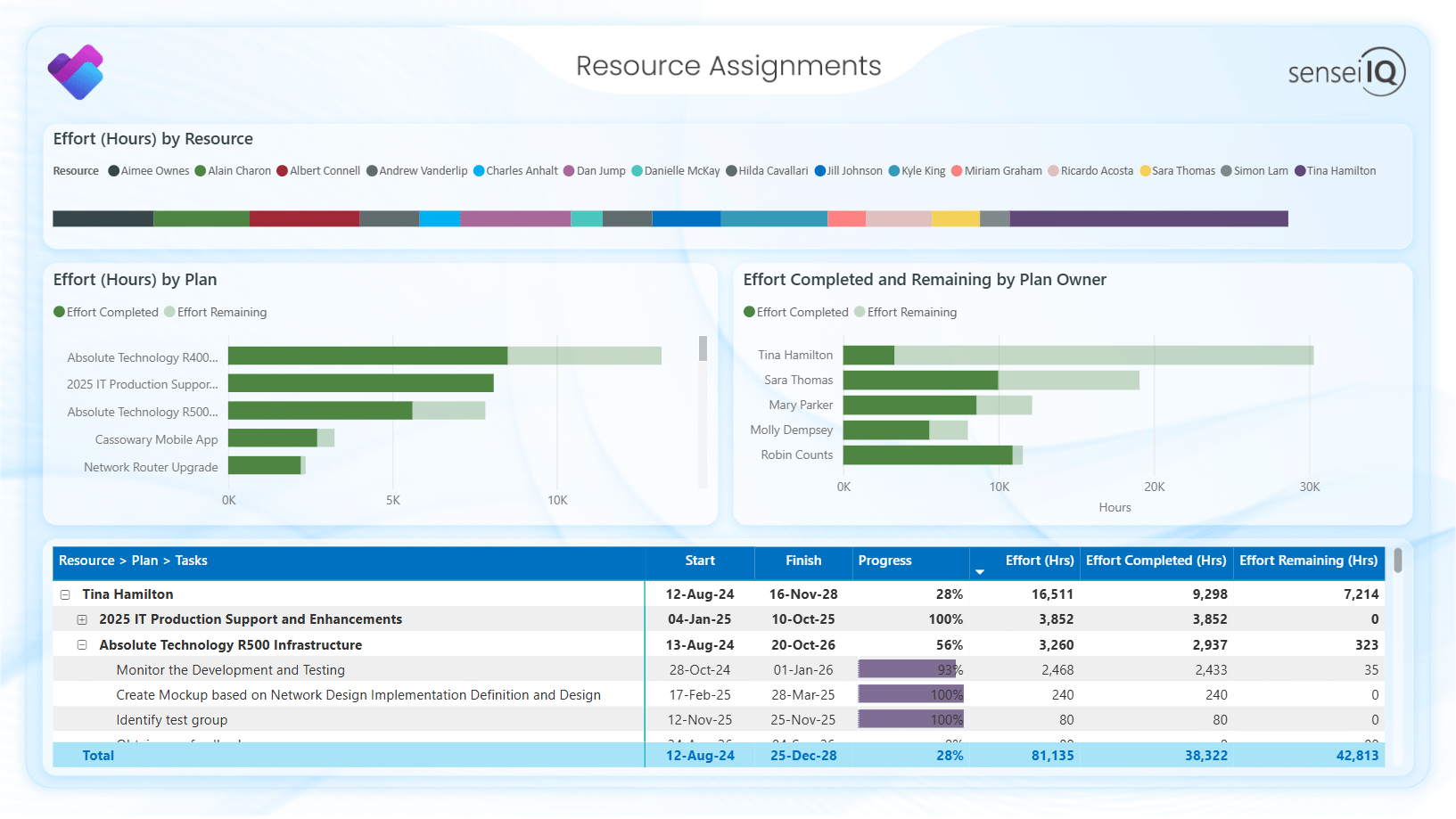
For a more detailed view, the Resource Assignments page lets you explore all resources, the plans they’re working on, and the tasks they’re assigned to within those plans.
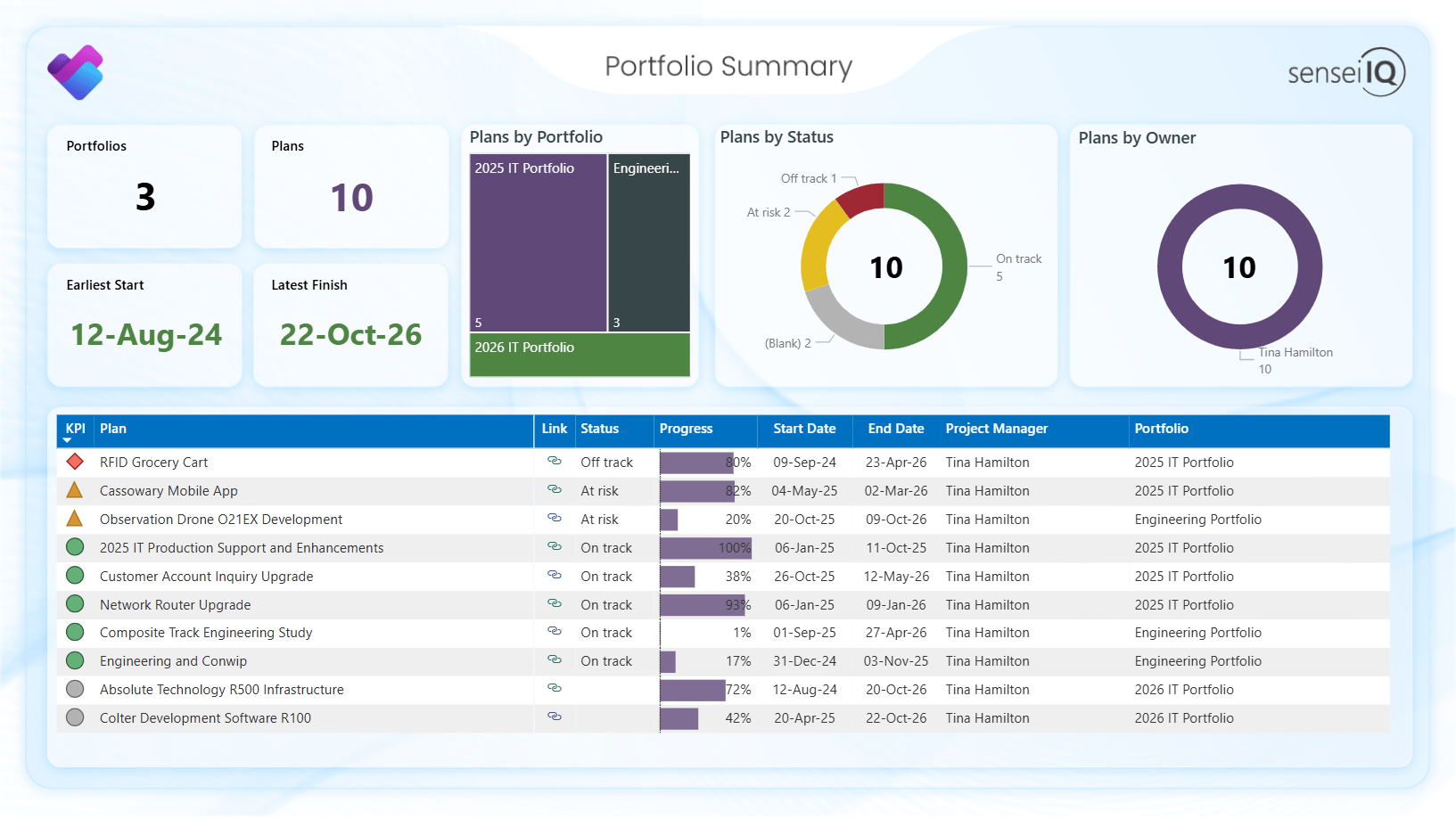
The Portfolio Summary page shows all the portfolios you have created and the plans within them. The statuses here represent what you have manually set for the plan within the portfolio.
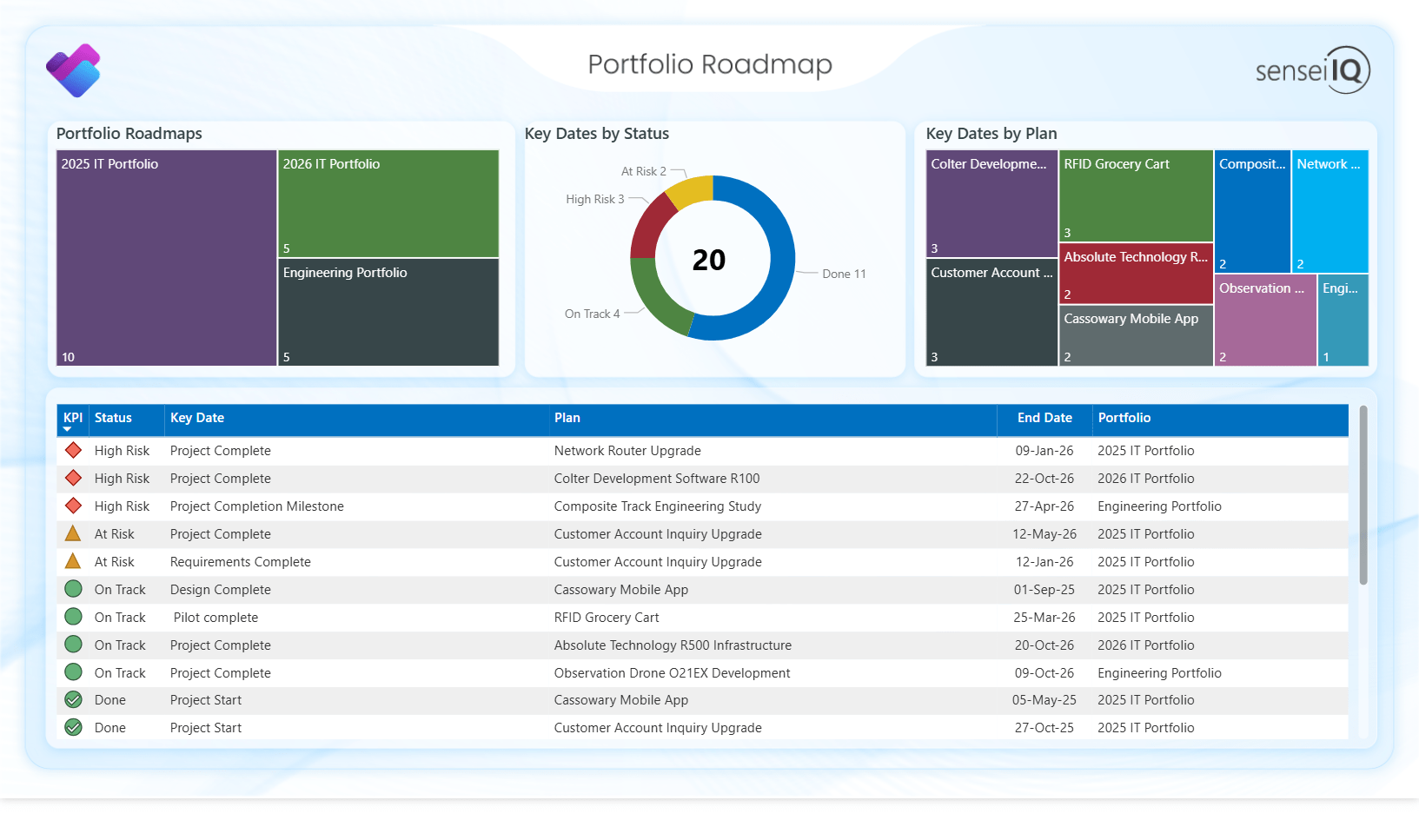
If you have created roadmaps for your portfolios, you’ll see the key dates on the Portfolio Roadmap page.
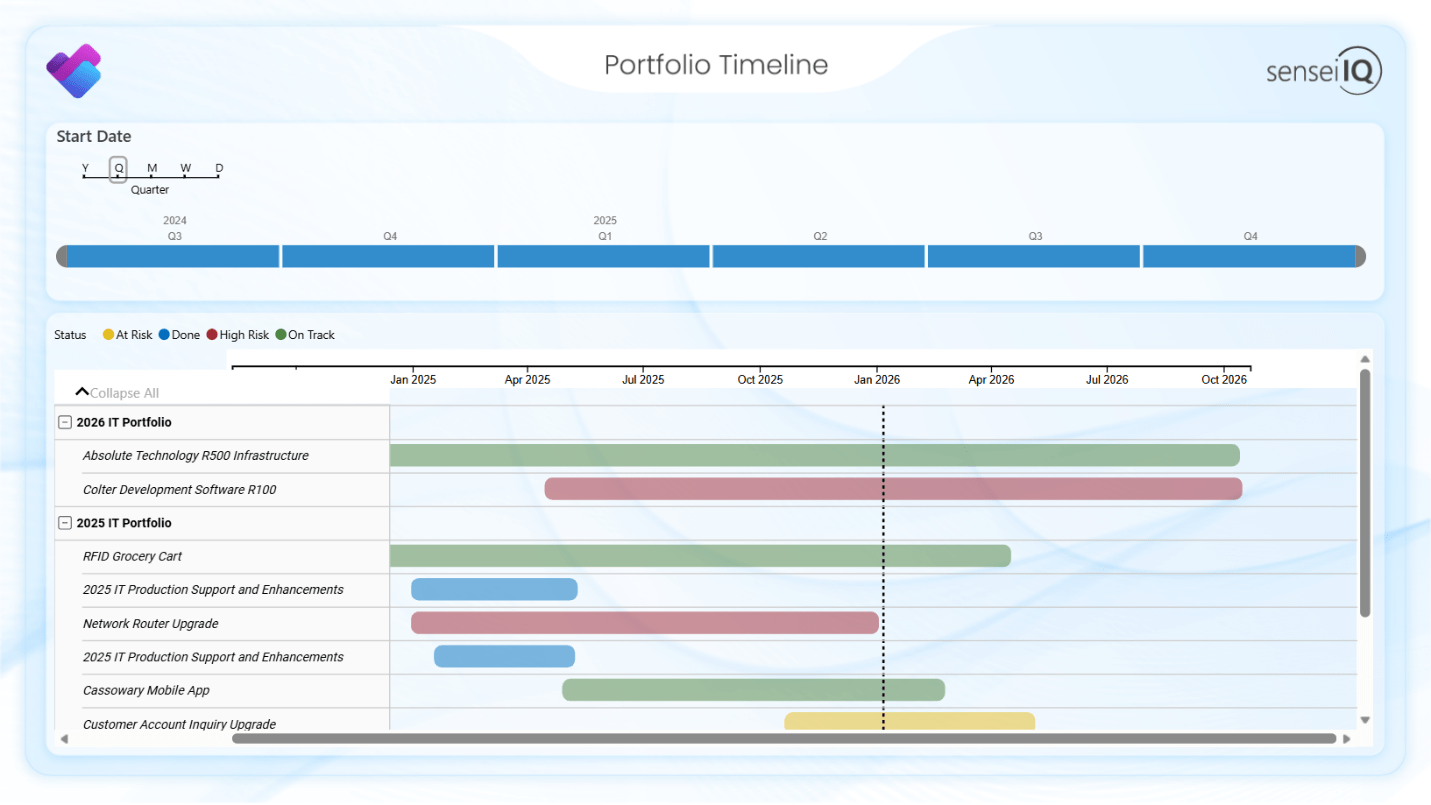
The Portfolio Timeline page shows that same timeline, but now grouped by portfolio and showing only the plans within those.
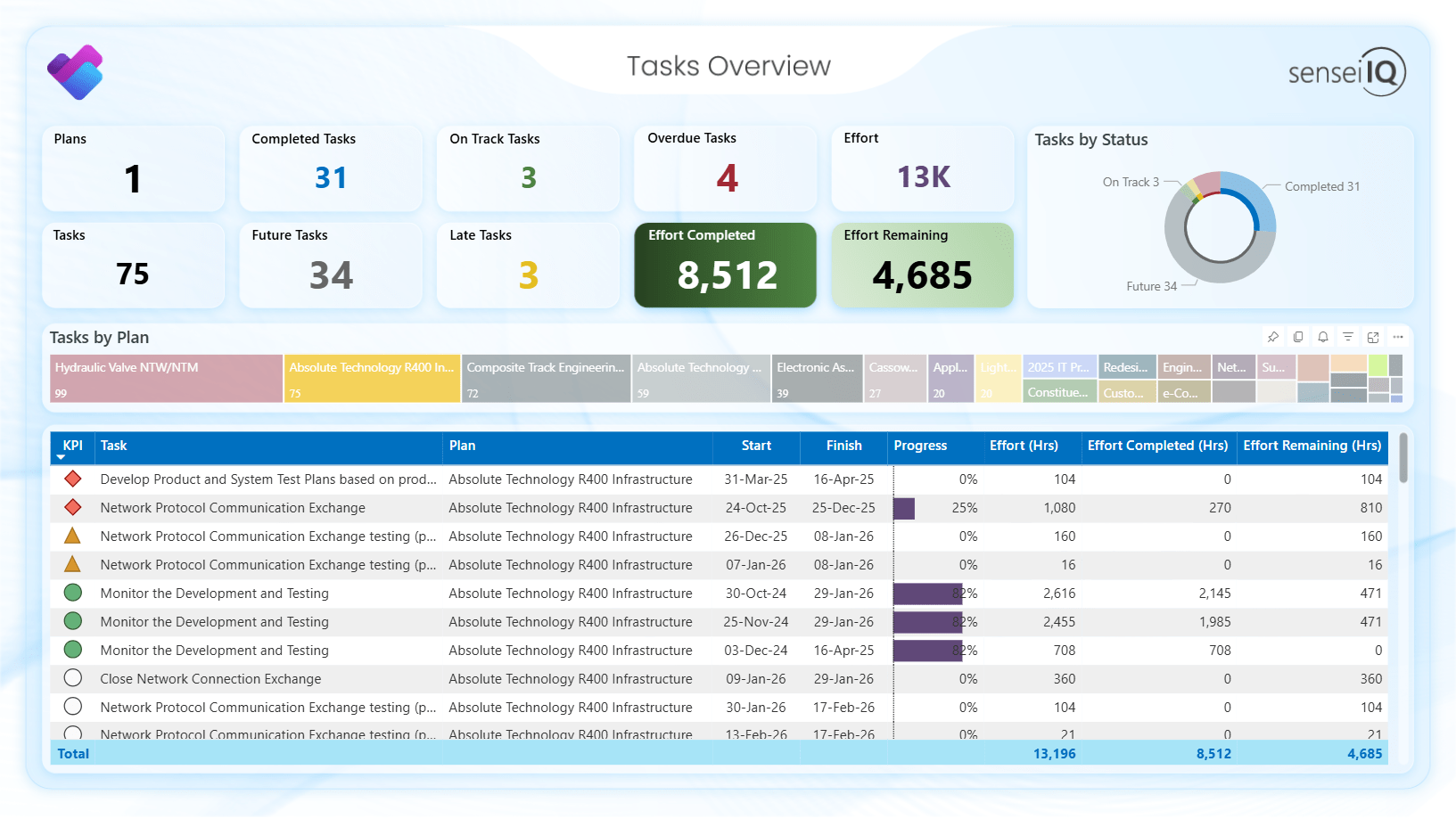
The Tasks Overview page shows every task within your plans. You can filter by status to quickly identify late and overdue tasks within a specific plan.
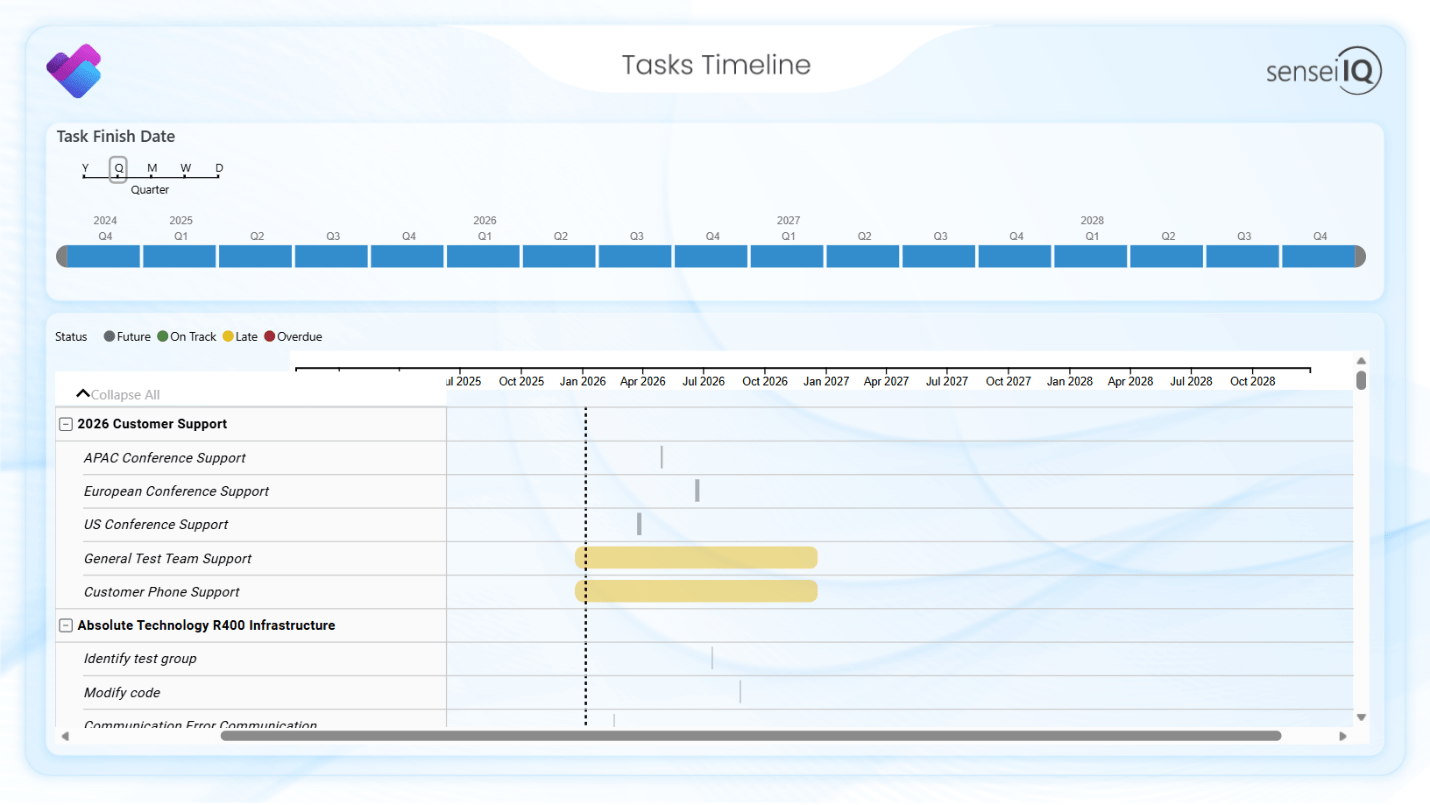
The Tasks Timeline page shows that same data on a timeline.
Download now: Power BI Report Pack for Planner premium plans
This free Power BI Template file and the installation instructions are available for you to download. Additionally, if you are interested in meeting with one of our Subject Matter Experts, please fill out the PPM Maturity Roadmap: Self-Assessment and email it to us at info@senseiprojectsolutions.com. Happy reporting!
Contact us: info@senseiprojectsolutions.com